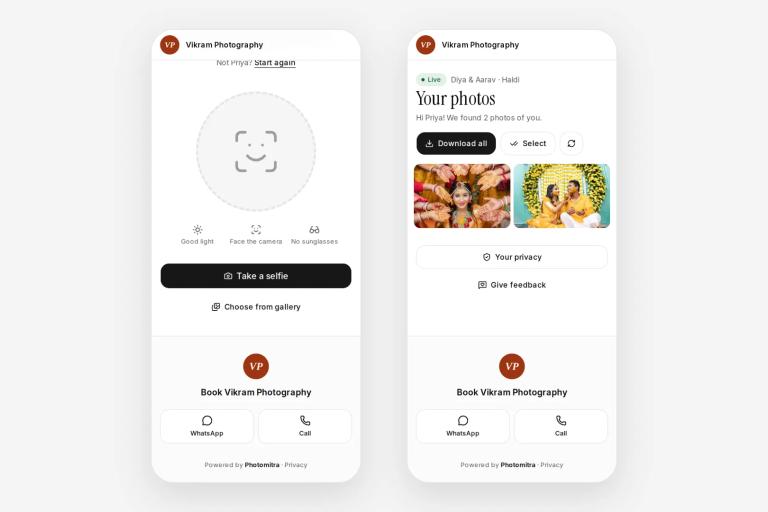
At an Indian wedding, guests start asking for photos long before the photographer packs up. Relatives want the haldi photos for their WhatsApp status the same evening, and the couple's friends want the sangeet photos before the reception. Live photo sharing answers them on the spot: the photos reach guests' phones while the function is still going on.
This guide explains how live photo sharing at weddings works, what you need at the venue, how to set it up step by step, and the problems to plan for.
What live photo sharing at a wedding means
The usual way is slow. You shoot the wedding, copy the cards at home, edit for weeks and then send a link. With live photo sharing, the camera sends each photo over Wi-Fi as you take it. A wedding photo sharing app receives it, makes a lighter copy for phones and shows it to guests during the same function.
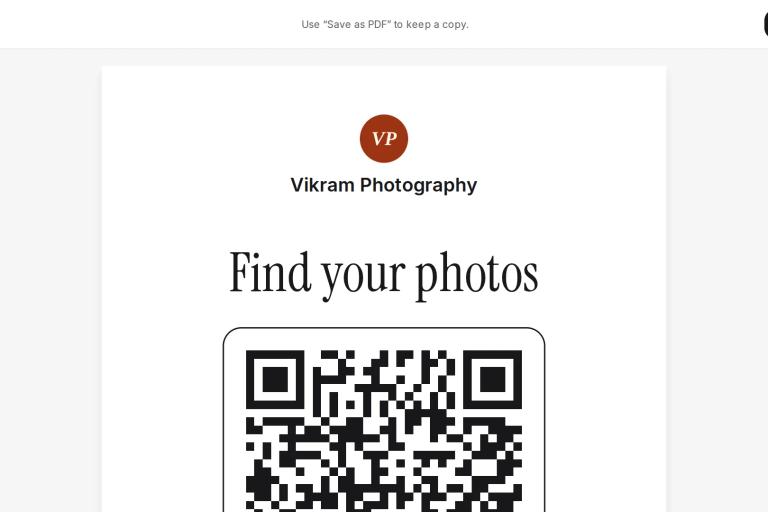
Most apps add two more parts. A QR code at the venue opens the event's page, and face recognition lets each guest take one selfie and see only the photos they are in. Without the selfie step, every guest has to scroll through every photo to find their own.
Note
Live sharing does not replace your edited delivery. Guests get quick copies on the day; the couple still gets the edited photos, the album and the films later.
What you need at the venue
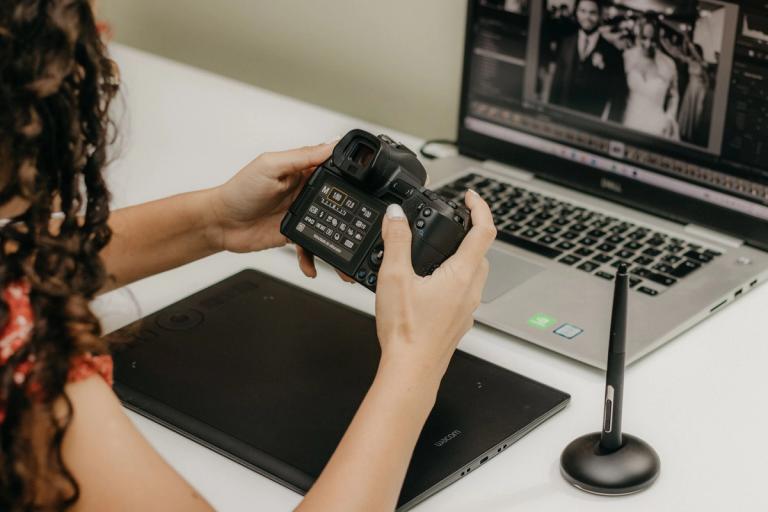
- A camera with Wi-Fi FTP transfer. FTP is a simple way to send files to a server. Most recent Sony, Canon and Nikon cameras have it in the network menu.
- Internet. A phone hotspot or the venue's Wi-Fi. A spare phone kept on charge near a window often gets a better signal than the one in your pocket.
- Spare batteries. Sending over Wi-Fi uses more battery than usual, so carry an extra one for each camera.
- A QR code where guests can see it. On the welcome board, near the stage and on the dining tables. Our guide to a QR code for wedding photos covers where to place it and how big to print it.
- A photo sharing app that accepts FTP uploads and has a selfie photo finder, so guests don't have to scroll through everything.
Setting it up, step by step
- A few days before the wedding, enter the app's FTP details in the camera: server name, port, user name and password. Good apps give you a guide with your camera's menu screens.
- Choose what the camera sends. Shoot RAW + JPEG and set the camera to send only the JPEG. The RAW file stays on the card for your edit.
- Test at home. Connect the camera to your phone's hotspot, take a few shots and check that they reach the event.
- Match the camera clocks. If two cameras show different times, photos from the same moment land far apart in the gallery. Set every camera's clock from your phone before each wedding.
- At the venue, connect each camera to the hotspot and take a test shot before the first ritual.
- Shoot as usual. Guests scan the QR, take a selfie and see their photos. New photos of them keep coming in as you shoot.
- After the function, upload from your laptop any photos the camera could not send, such as shots from a second body without Wi-Fi.
Which functions to share live
Live sharing works best where there are many guests and the photos are fun to share the same day: the haldi, the mehendi, the sangeet and the reception. These are also the functions where guests have time to scan a QR while they wait or eat.
For the muhurtham and other rituals, some families would rather wait for the edited photos. You can still send them live, or keep them for the edited delivery. Ask the couple when they book, and write the answer in your quotation.
What about unedited photos?
Guests see the camera's JPEG, not your final edit. Set a good picture profile and the right white balance before the event, and the quick copies look clean. If a photo is not good enough, hide it from guests. Your edited photos still come later, and they will look better.
Common problems and how to handle them
- Weak signal in a basement hall. Move the hotspot phone near a window or the entrance. If photos still fail, keep shooting: they are safe on the card, and you can send them again later.
- Batteries running out by evening. Change batteries between functions, not in the middle of the pheras.
- Guests scan before there are photos. Start sending from the first function of the day, so the first guests who scan find something and come back.
- Guests worried about privacy. Use an app where each guest sees only their own photos, with a clear consent screen before the selfie. Open the full gallery only when the couple wants it.
- Two weddings on the same day. Use one studio QR that opens a board of the day's events, so each guest picks theirs.
Doing it in Photomitra
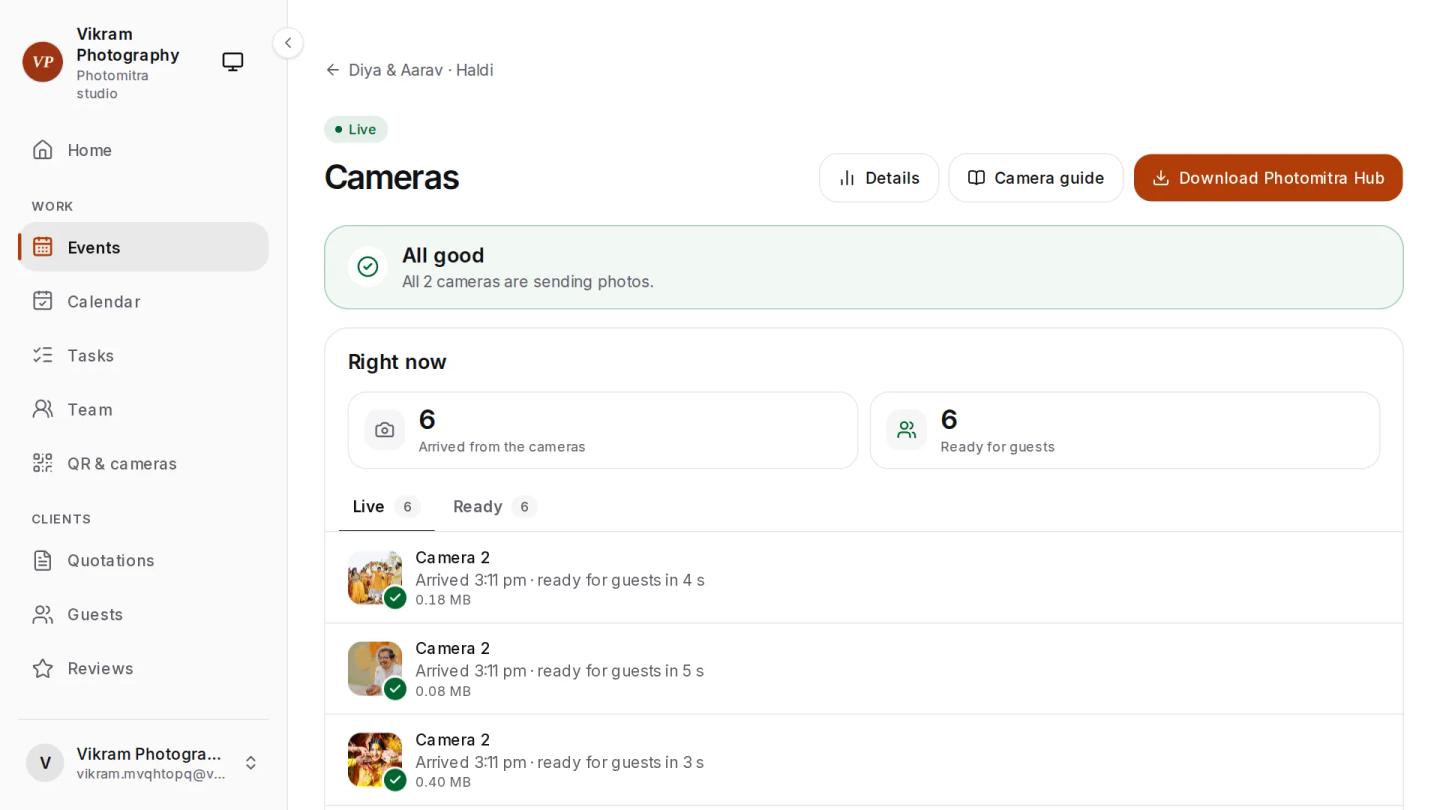
With Photomitra's live camera upload, you enter your studio's camera login in the camera's FTP menu once, and every photo you shoot goes to the event. Several cameras send into one gallery, and the Cameras page tells you when a camera goes quiet. Guests get JPEG copies and your RAW files stay on the card. A phone hotspot is enough, and photos the camera couldn't send are listed by name, so you can send them again.
Guests scan your studio QR, agree on a consent screen and take one selfie, and the selfie photo finder shows each of them the photos they are in, in the phone's browser, with no app to install. Every package includes both, from ₹1,499 a month.
Share this post
Written by the Photomitra teamWe build live photo delivery, album selection and studio software for wedding and event photographers in India, and set it up with them on WhatsApp. About us